Uploading Documents
This guide covers how to attach supporting documents to your formal complaint.
Upload Supporting Documents
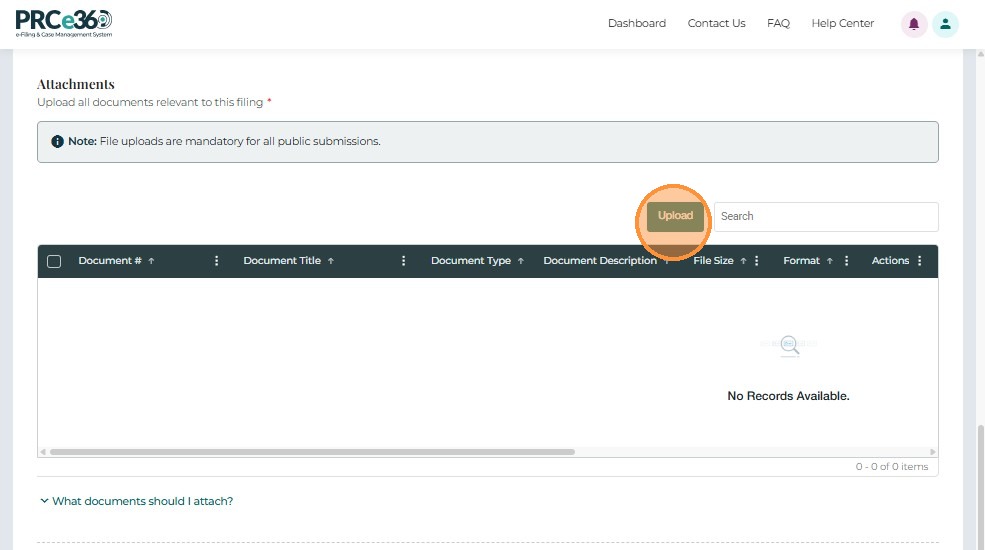
If supporting files need to be attached, click Upload.
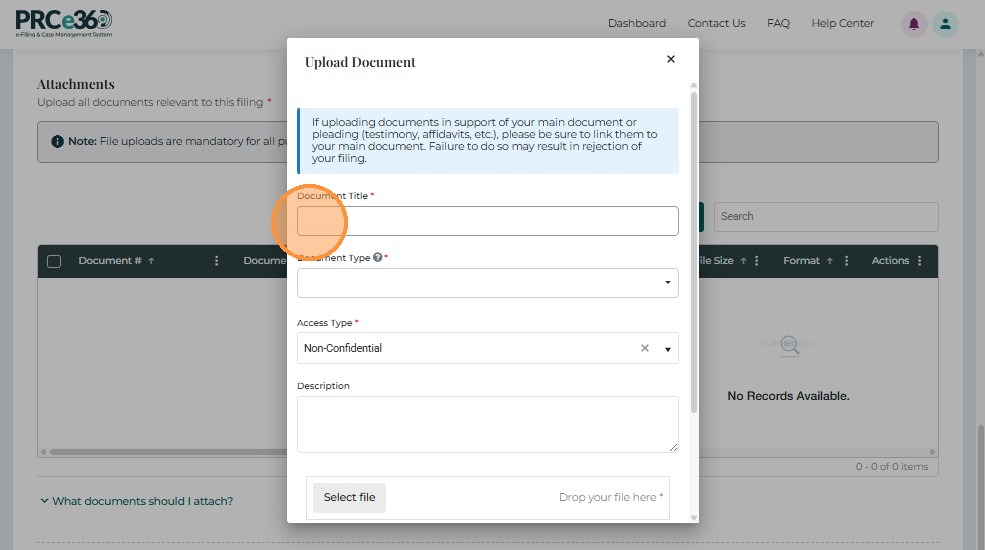
A pop-up window will appear for adding document details.
Complete Document Details
- Document Title – Provide a clear, descriptive title.
- Document Type – Select from the dropdown (e.g., Petition, Exhibit, Order, Supporting Document).
- Document Description – Briefly describe the document's contents.
- Access Type – Choose Non-Confidential (public) or Confidential (restricted).
- Select File – Browse or drag-and-drop to upload.
- Save – Adds the document to the list.
- Cancel – Closes the form without saving.
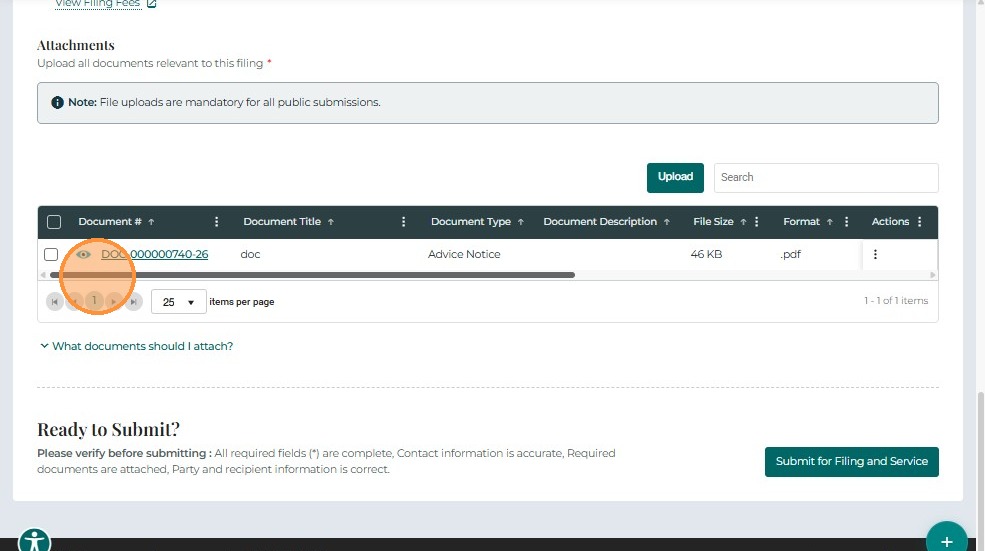
After saving, documents appear in the grid.
Use the Actions menu to Link related documents or Remove entries if needed.
Document Upload Tips
Recommended Documents
- Bills or invoices showing the issue
- Correspondence with the utility or company
- Photos or evidence of the problem
- Account statements or service records
- Previous complaint records (if applicable)
File Requirements
- Accepted formats: PDF, DOCX, XLSX, JPG, PNG
- File size: Maximum 10-50 MB per file (check form for exact limit)
- File names: Use descriptive names (e.g., "Power_Outage_Bill_Jan2024.pdf")
- Multiple files: Upload each document separately
Document Organization
- Give each document a clear, descriptive title
- Add a brief description explaining what the document shows
- Organize documents chronologically if possible
- Ensure documents are readable and not corrupted
Next Steps
After uploading your documents:
- Submitting Your Complaint - Submit your complaint with all documents
Related Guides
- Submit a Formal Complaint - Overview - Introduction to formal complaints
- Completing the Form - Fill out complaint details
- Troubleshooting - Solve file upload issues